Understanding the IPTV Smart Roku Architecture
Before diving into the setup methods, it is crucial to understand how streaming protocols interact with Roku’s unique operating system. Unlike Android TV, which allows direct installation of APK files, Roku uses a proprietary system based on Linux.
To learn more about the technical foundations of internet streaming, you can review the Wikipedia entry on Internet Protocol Television.
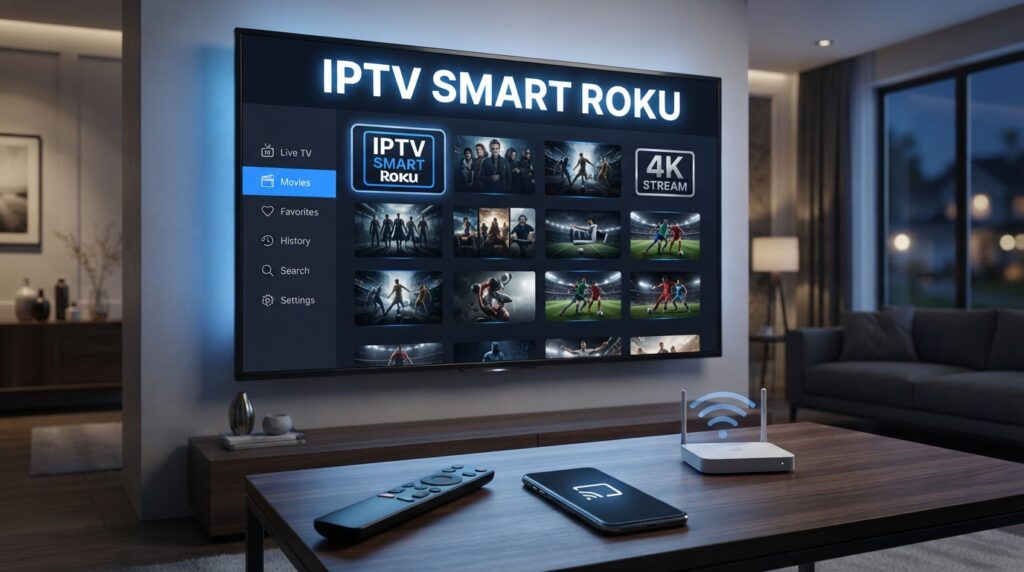
An effective IPTV Smart Roku architecture relies on three main components:
-
The Source Playlist: Your M3U link or Xtream Codes API provided by your streaming service.
-
The Intermediary Player: A compatible app, casting tool, or screen-mirroring protocol that translates the stream.
-
The Hardware: Your Roku streaming stick, Roku Ultra, or integrated Roku Smart TV.
By understanding how these components work together, you can troubleshoot any playback issues and ensure your IPTV Smart Roku setup delivers crisp, uninterrupted video.
Why Choose an IPTV Smart Roku Setup?
Despite the setup hurdles, there are compelling reasons why American viewers continue to prefer Roku devices for their streaming needs. Roku remains one of the most popular streaming platforms in the USA.
The benefits of maintaining an IPTV Smart Roku configuration include:
-
Superior Hardware Durability: Roku devices are built to last and rarely suffer from the overheating issues common in cheaper Android sticks.
-
Clean User Interface: The Roku home screen is intuitive, ad-light, and incredibly easy for all family members to navigate.
-
Universal Search: Roku’s built-in search engine excels at finding content across multiple official applications.
-
4K Upscaling: High-end Roku devices provide excellent upscaling for 1080p sports and movie streams.
When paired with a reliable provider, your Roku device transforms into the ultimate entertainment hub. You can view our complete channels list to see the immense variety of USA and international content available.
The Challenge: Roku's Closed Ecosystem
It is impossible to discuss an IPTV Smart Roku setup without addressing the elephant in the room. In recent years, Roku has actively removed many popular M3U players from its official Channel Store due to copyright concerns.
Unlike the open-source nature of Android, Roku tightly controls what software can run on its hardware. This means you cannot simply search for “IPTV Smarters” or “TiviMate” and click install.
However, this closed ecosystem is exactly why Roku devices run so smoothly. To bridge the gap, tech-savvy users rely on alternative methods. Understanding these workarounds is the key to mastering your IPTV Smart Roku environment.
Method 1: Screen Mirroring for IPTV Smart Roku
The easiest and most accessible way to achieve an IPTV Smart Roku connection is through screen mirroring. This method requires zero technical hacking and uses the built-in protocols of your smartphone or computer.
How to Mirror from Android or Windows
Roku natively supports Miracast, the standard mirroring protocol used by Windows and Android.
-
Download a premium IPTV player (like Smarters Pro) on your Android phone or Windows PC.
-
Connect your phone/PC and your Roku to the exact same Wi-Fi network.
-
On your Roku, navigate to Settings > System > Screen Mirroring and set it to “Prompt” or “Always Allow.”
-
Open the “Smart View” or “Cast” option on your Android device and select your Roku.
-
Open your IPTV app on your phone; it will now display directly on your television.
How to Mirror from Apple Devices (iOS/Mac)
Modern Roku devices support Apple AirPlay 2, making this process seamless for iPhone users.
-
Install an IPTV player like GSE Smart IPTV on your iPhone or iPad.
-
Ensure both your Apple device and Roku are on the same Wi-Fi network.
-
Swipe down to access the iOS Control Center and tap the “Screen Mirroring” icon.
-
Select your Roku device from the list.
-
Launch your streaming app to cast the content to your TV.
While screen mirroring is easy, it drains your phone’s battery and ties up your device. For a more permanent IPTV Smart Roku solution, we must look at casting applications.
Method 2: Using Web Video Caster
Web Video Caster is widely considered the best intermediary app for an IPTV Smart Roku configuration. It acts as a bridge, taking the stream from your phone and sending the direct video URL to your Roku.
This method is superior to screen mirroring because once the video starts playing on your TV, you can use your phone for other tasks or even turn the phone screen off.
Step-by-Step Setup Guide
Follow these instructions to optimize your IPTV Smart Roku experience using Web Video Caster:
-
Download Web Video Caster from the Google Play Store or Apple App Store.
-
On your Roku device, search for and install the Web Video Caster Receiver channel.
-
Open the app on your phone and tap the three horizontal lines to open the menu.
-
Select IPTV and tap the + icon to add your M3U playlist URL.
-
Connect the app to your Roku receiver by tapping the Cast icon at the top of the screen.
-
Browse your live channels or VODs within the app and select a stream to play on the big screen.
This method delivers excellent picture quality and reduces buffering. Test this setup today by requesting a 24-hour trial from our team.
Method 3: Sideloading via Developer Mode
For advanced users who want a native IPTV Smart Roku app without relying on their smartphone, sideloading is the ultimate solution. This involves activating a hidden developer menu on your device.
Disclaimer: Sideloading requires you to source your own .zip files of Roku-compatible IPTV players, which can be found on various developer forums like GitHub.
Activating Developer Mode
To enable the ability to sideload apps, you must enter a specific sequence on your Roku remote:
-
Press Home 3 times.
-
Press Up 2 times.
-
Press Right 1 time.
-
Press Left 1 time.
-
Press Right 1 time.
-
Press Left 1 time.
-
Press Right 1 time.
A secret screen will appear. Note down the IP address shown on the screen, select “Enable installer and restart,” and create a webserver password.
Installing the IPTV Player
Once your Roku reboots, complete your native IPTV Smart Roku installation:
-
Open a web browser on your computer and type in the IP address you noted down.
-
Log in using the username
rokudevand the password you created. -
Click the Upload button and select the
.zipfile of your chosen Roku IPTV player. -
Click Install. The app will immediately appear on your Roku home screen.
For official documentation on developer settings, you can read the Roku Developer Setup Guide.
Network Optimization for IPTV Smart Roku
No matter which method you choose, an IPTV Smart Roku setup is heavily dependent on the quality of your home network. Streaming live high-definition sports and movies requires consistent packet delivery.
According to the FCC Broadband Speed Guide, you need specific speeds for uninterrupted streaming:
-
Standard Definition (SD): 3-5 Mbps
-
High Definition (1080p): 10-15 Mbps
-
Ultra HD (4K): 25+ Mbps per concurrent stream
Reducing Buffering
To ensure your IPTV Smart Roku device performs at its peak, follow these network hygiene practices:
-
Use Ethernet: If your Roku device has an Ethernet port, hardwire it directly to your router. Wi-Fi is prone to interference from walls and other electronics.
-
Switch to 5GHz: If you must use Wi-Fi, ensure your Roku is connected to the 5GHz band rather than the crowded 2.4GHz band.
-
Check Your Speed: Run a diagnostic test on Speedtest.net standing right next to your television.
-
Restart Frequently: Reboot your router and your Roku device once a week to clear network cache.
Legal and Security Considerations
When setting up any streaming device, understanding the legal landscape is important. An IPTV Smart Roku configuration is perfectly legal from a hardware and software perspective.
However, the legality of the content you stream depends entirely on the licensing agreements of your chosen provider. In the USA, intellectual property and broadcast rights are strictly regulated. To understand the framework of digital copyright laws, you can visit the U.S. Copyright Office website.
Many users opt to utilize a Virtual Private Network (VPN) with their IPTV Smart Roku setup. A VPN encrypts your traffic, prevents your Internet Service Provider (ISP) from throttling your streaming speeds, and protects your data privacy. Since Roku does not support native VPN apps, you will need to install the VPN directly onto your Wi-Fi router.
Roku vs. Firestick for IPTV: Which is Better?
If you are struggling with your IPTV Smart Roku setup, you might wonder if it is worth switching hardware. The Amazon Fire TV Stick is the biggest competitor to Roku in the US market.
When to Keep Your Roku:
-
You prioritize a clean, simple interface without Amazon’s aggressive advertising.
-
You are comfortable using Web Video Caster or screen mirroring.
-
You primarily use official apps (Netflix, Hulu) and only use IPTV occasionally.
When to Switch to Firestick:
-
You want to install native apps like TiviMate or IPTV Smarters Pro directly to the device.
-
You prefer an open Android ecosystem.
-
You want a dedicated, standalone streaming setup without using your smartphone.
Both devices are capable of delivering 4K streams. If you want to learn more about our service compatibility, read more about us and our infrastructure.
Frequently Asked Questions
What is an IPTV Smart Roku setup?
It refers to the process of configuring a Roku streaming device or Roku Smart TV to play internet-based television playlists, usually through screen mirroring, casting, or sideloaded developer apps.
Is IPTV Smarters available on Roku?
Currently, IPTV Smarters Pro is not officially available in the Roku Channel Store. You must either screen mirror the app from your smartphone or use the Developer Mode sideloading method to install a legacy version.
Why does my IPTV Smart Roku stream keep buffering?
Buffering is almost always caused by network instability rather than the Roku device itself. Ensure your internet speed meets the 25 Mbps requirement for 4K streams, connect via 5GHz Wi-Fi, and check if your ISP is throttling your connection.
Can I use a VPN directly on my Roku?
No, Roku’s operating system does not support native VPN applications. To protect your IPTV Smart Roku traffic, you must configure a VPN at the router level or share a VPN connection from a Windows PC.
Which casting app is best for Roku?
Web Video Caster is widely considered the most reliable application for casting M3U playlists to a Roku device, as it allows you to close the app on your phone once the stream begins playing on the TV.
Conclusion: Mastering Your Streaming Experience
Setting up an IPTV Smart Roku configuration in 2026 requires a bit of patience, but the reward is a premium, cost-effective home entertainment system. By leveraging tools like Web Video Caster, Apple AirPlay, or the hidden Developer Mode, you can bypass Roku’s closed ecosystem and unlock thousands of live channels and movies.
The key to a flawless viewing experience lies in choosing a provider with stable servers and optimizing your home Wi-Fi network. Once your hardware is ready, your television will become the ultimate media hub.
Are you ready to test your newly configured device? Subscribe to our premium IPTV service today to access ultra-fast USA servers, 4K sports, and an endless VOD library. If you need assistance linking your Roku device to our service, contact our support team on WhatsApp at +212 642-212736 for expert, step-by-step guidance.